

Instagram is fun, creative, and sometimes chaotic. One minute you are posting a Reel that took hours to edit, and the next you are wondering why it only reached 300 people. That is exactly why understanding How to Get Your Instagram Stats? matters more than ever. Your numbers tell a story. They show what your audience loves, what they scroll past, and how the Instagram algorithm is treating your content.
In this guide, I will walk you step by step through how to see Instagram stats, how to check analytics on Instagram, and how to find your Instagram Insights dashboard. We will also cover tools, limitations, and practical tips you can apply immediately.
Key Takeaways
- You must switch to a Business or Creator account to unlock Instagram insights
- Instagram provides built-in Instagram analytics inside the app
- You can track Instagram engagement rate, reach, impressions, audience demographics, and more
- Third-party tools offer deeper Instagram performance metrics
- Understanding stats helps you improve content engagement and grow faster
What Is Instagram Insights?
Instagram Insights is Instagram’s built-in Instagram analytics tool available for Business and Creator accounts. It is completely free and gives you access to detailed Instagram account statistics directly inside the app.
With Insights, you can track Instagram reach and impressions, engagement, follower activity, and overall Instagram content performance across posts, Stories, Reels, and Live videos. It also provides Instagram audience insights like demographics and active hours, helping you make smarter content decisions.
In short, Instagram Insights shows you what is working, what is not, and how to improve your overall Instagram performance metrics using real data instead of guesswork.
Step-by-Step: How to See Instagram Stats Inside the App
This is the exact walkthrough you can follow. It is the same process whether you are a creator, a small business, or just someone who wants to understand their content better.
1) Switch to a Business or Creator Account to Enable Insights
Instagram hides most Instagram account statistics behind professional accounts, so this first step is essential. Once you switch, your Instagram business account analytics or Instagram creator account insights will unlock automatically. It takes only a couple of minutes, and you can switch back later, although you lose access to your stats if you do.
Do this in order:
- Open Instagram and go to your profile.
- Tap the three lines in the top right corner.
- Tap Settings and privacy.
- Scroll to Account type and tools.
- Tap Switch to professional account.
- Choose Creator or Business.
- Follow the prompts and finish setup.
After this, you have officially turned on Instagram insights. This is the main switch that makes everything else possible.
2) Find the Instagram Insights Dashboard
Now that Insights are enabled, you need to know exactly where Instagram hides the dashboard. It is easy once you have seen it once, but many people miss it at first because Instagram moves menu labels around.
Do this in order:
- Return to your profile page.
- Tap Professional dashboard or Insights under your bio.
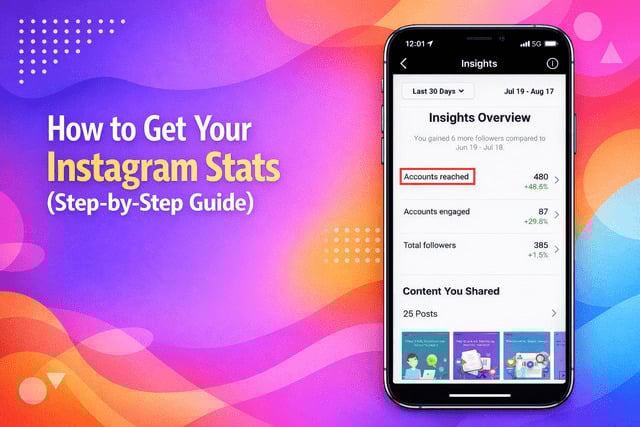
- Look for an overview showing reach, followers and interactions
- Use the date filter to switch between the last 7, 14, or 30 days.
This is your social media analytics dashboard inside Instagram. Think of it as your “control room” for Instagram performance metrics.
3) Post Analytics for Any Feed Post
Once you are inside Instagram Insights, you will probably want to know how individual posts performed. This is where Instagram post analytics become your best friend because you can see what content earns the most saves, shares, and profile visits.
Do this in order:
- Open your profile and tap any post.
- Tap View insights under the post.
- Review likes, comments, shares, and Instagram saves and shares analytics.
- Look at reach and impressions to understand visibility.
- Note follows or profile visits generated by the post.
This is the quickest way to learn what your audience actually values. A post with fewer likes but many saves often has stronger long-term value.
If you want to get more Instagram followers and scale faster, use growth strategies combining smart promotion with data driven decisions creates a powerful system.
4) Reels Analytics and Video Views
Reels are a huge growth lever, so you want to monitor Instagram Reels analytics and Instagram video views analytics regularly. Reels can also show signs of Instagram algorithm performance, especially if one Reel suddenly reaches non-followers.
Do this in order:
- Open your profile and go to the Reels tab.
- Select a Reel you want to analyze.
- Tap the three dots or View insights.
- Check plays, reach, watch time, likes, comments, saves, and shares.
- Look at the percentage of non-followers reached.
A simple tip from experience: when a Reel brings in lots of shares, Instagram tends to push it further, because it reads that as “people want others to see this.”
Pro Tip: Look specifically at Replays. If your 'Views' are significantly higher than your 'Reach,' it means people are watching your Reel more than once. This is a massive "viral signal" to the 2026 algorithm, telling Instagram to push your content to the Explore page.
5) Instagram Story Insights
Stories are where relationship-building happens, so Instagram Story insights help you understand what keeps people watching. You can use these stats to improve retention and clicks, especially if you use stickers, polls, or link taps.
Do this in order:
- Open your profile and tap Insights.
- Go to Content you shared.
- Tap Stories and choose a time range.
- Review views, reach, replies, exits, and taps forward.
- Track link clicks to estimate Instagram CTR when you share URLs.
If you see lots of forward taps early in the story, your hook may be too slow. If exits spike, your story might feel “salesy” or off-topic.
6) The Hidden Metric: Screenshot Tracking
In a 2025 Q&A, Instagram's leadership hinted that Screenshots are being weighted more heavily as an engagement signal. While not a "clickable" button like a Like, a screenshot tells the AI that your content is so valuable the user wants to keep it in their personal gallery.
Pro tip: Create "Reference" content—checklists, infographics, or recipes—that practically begs for a screenshot.
7) View Instagram Profile Statistics Like Visits, Reach, and Profile Views
Your profile stats tell you what people do after they see your content. This includes Instagram profile insights like profile visits, website clicks, and Instagram profile views stats.
Do this in order:
- Open your Insights or Professional dashboard.
- Tap Accounts reached and Accounts engaged.
- Tap Profile activity for visits and website taps.
- Compare your reach to your profile visits for conversion clues.
This is where you start connecting content to results. A post might get high reach, but if profile visits are low, your CTA or positioning may need tightening.
8) Audience Insights and Follower Analytics
Now for the part that makes your content strategy feel “smart.” Instagram audience insights show who your followers are and when they are active, which can seriously improve your posting schedule and content timing.
Do this in order:
- Go to Insights.
- Tap Total followers.
- Review age range, gender, and top locations.
- Check active hours and active days.
- Use this data to schedule content when your followers are online.
This is the core of Instagram follower analytics, and it is one of the easiest ways to track Instagram growth without doing anything complicated.
If your next goal is to get more Instagram posts’ views, always combine visibility tactics with consistent analytics review. Data driven creativity wins every time.
What Data Can You See in Instagram Stats?
Once you open Instagram insights, the numbers can feel like a lot at first. The trick is knowing what really matters and grouping your Instagram analytics into simple categories.
Here’s what you’ll see most often:
- Instagram reach and impressions
- Instagram engagement analytics like likes, comments, saves, and shares
- Instagram content performance for posts, Stories, and Reels
- Instagram growth metrics such as follows and unfollows
- Instagram audience insights including age, location, and active hours
Pro tip: In 2026, focus on Views as your primary health metric. Instagram now uses 'Views' to track how many times your content (including photos) appeared on screen. It has effectively replaced 'Impressions' in the main dashboard.
One thing people often confuse is Instagram impressions vs reach. Reach shows how many unique people saw your content. Impressions show how many total times it was viewed, including repeats. If you want awareness, focus on reach. If you want content people come back to, impressions tell that story.
At the end of the day, measuring performance is not about obsessing over one number. It’s about looking at patterns across your Instagram performance metrics and adjusting your strategy accordingly.
Why You Might Not Be Able to See Your Instagram Stats?
Sometimes people search how to see Instagram stats and feel frustrated because nothing appears. There are several common reasons.
Let’s break them down.
Business Account Not Enabled
The most common reason is that Insights are not turned on. If you are using a personal account, you will not see Instagram analytics at all.
Switching to a professional account immediately solves this.
Follower Count Requirements
Instagram does not require a minimum number of followers to unlock Insights. However, certain detailed Instagram audience insights may not appear until you have enough data.
For example, demographic breakdowns may need a small follower base to generate meaningful data. Detailed demographic data (age/gender) specifically requires 100 followers.
Data Not Available for Older Posts
Instagram only tracks data from the moment you switch to a professional account. Posts published before switching will not show full Instagram post analytics.
So if you recently enabled Insights, give it time.
Read more: How To See Your Exact Follower Count On Instagram?
Can You View Instagram Stats for Other Accounts?
This is a very common question. People want to analyze competitors or influencers.
The short answer is no, not directly through Instagram.
Limitations of Instagram’s Built-In Analytics
Instagram only allows you to see your own Instagram account statistics. You cannot access another account’s:
- Reach
- Engagement rate
- Saves
- Audience demographics
You can see public data like likes and comments, but not detailed Instagram engagement analytics.
Using Instagram Analytics Tools to Analyze Any Account
This is where third-party platforms come in. A professional Instagram analytics app or Instagram stats tracker can estimate public performance metrics.
These tools analyze:
- Public engagement
- Posting frequency
- Estimated growth trends
- Hashtag performance
If you are serious about brand growth, investing in a reliable third-party Instagram analytics platform can provide deeper competitive insights.
Read more: How To See When Your Followers Are Most Active On Instagram?
Best Instagram Analytics Tools to Check Instagram Stats
Instagram’s built-in dashboard is powerful, but external tools go even further.
The best Instagram analytics tools usually offer:
- Automated reporting
- Multi account comparison
- Historical growth charts
- Exportable data
Many platforms offer a free Instagram analytics tool version with limited features.
When selecting an Instagram analytics tool, look for:
- Clear data visualization
- Engagement tracking
- Audience segmentation
- Competitor comparison
- Reels and video analytics
Some tools even show Instagram video views analytics and algorithm trend tracking.
Comparing Multiple Instagram Accounts
If you manage multiple brands or client accounts, comparison features are essential.
Advanced dashboards let you compare:
- Engagement rate across accounts
- Follower growth trends
- Content performance categories
This helps you refine strategy faster.
Exporting Instagram Analytics Reports
Professional marketers often need downloadable reports.
Most premium Instagram insights app platforms allow exporting data into PDF or CSV format. That makes presenting Instagram performance metrics to clients or teams much easier.
Final Verdict
At this point, you know exactly how to get your Instagram stats.
The simple version looks like this:
- Switch to a Business or Creator account
- Open Insights in your profile
- Analyze profile, posts, Stories, and audience data
- Use third-party tools for deeper tracking
Understanding how to measure Instagram performance gives you clarity. Instead of guessing, you rely on numbers.
FAQs
How to get your Instagram stats?
Switch to a Professional account. Choose Business or Creator. Then open your profile and tap Instagram insights or Professional Dashboard. You will see your full Instagram analytics, including reach, engagement, and follower data.
How to check analytics on Instagram?
Go to your profile. Tap Insights. Review your Instagram performance metrics like reach, impressions, and Instagram engagement rate. Tap any post and select View Insights for detailed Instagram post analytics.
How to find your Instagram Insights quickly?
Open your profile. Tap Professional Dashboard under your bio. This opens your built-in Instagram analytics tool. You can filter data by the last 7, 14, or 30 days.
Does Instagram Insights show who views your profile?
No. Instagram does not show individual profile visitors. You only see total profile visits inside Instagram profile insights. User privacy is protected.
What’s the difference between reach and impressions?
Instagram reach and impressions are not the same. Reach is the number of unique accounts that saw your content. Impressions are total views, including repeat views from the same account.
Why can’t I see my Instagram stats?
You may still have a personal account. Switch to a Business or Creator account to enable Instagram insights. Also, older posts may not show full data if you switched recently.
Can I see Instagram Insights for other accounts?
No. Instagram only shows Instagram account statistics for accounts you manage. To analyze competitors, you need a third-party Instagram analytics tool.
How far back does Instagram Insights data go?
Most Instagram growth metrics are available for up to 90 days inside the app. For long-term tracking, use an external Instagram analytics app or export reports regularly.
How do I improve Instagram engagement rate using Insights?
Check posts with high saves and shares. Study your Instagram audience insights for active hours. Repeat what works. Improve what does not.