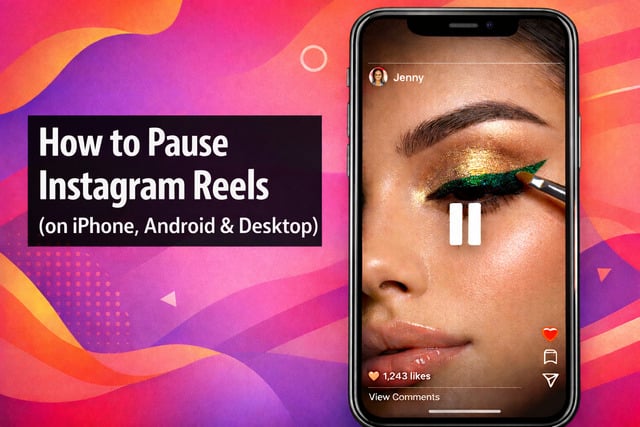
Many Instagram users ask can you pause Instagram Reels after trying to stop a video mid-play and finding no visible pause button. Because Reels are designed for fast, continuous scrolling, basic playback controls often feel hidden or unclear. This leads to confusion around how to stop Reels on Instagram and whether pausing is even possible.
The good news is that pause Instagram Reels works on both iPhone and Android using gesture-based controls. This guide explains why the pause feature sometimes fails, and how to fix common issues when Instagram Reels are not pausing properly.
Key Takeaways
- You can pause Instagram Reels by tapping and holding anywhere on the video, even though there is no visible pause button.
- If Instagram Reels are not pausing, the issue is usually caused by outdated app versions, bugs, or device compatibility problems.
- Updating the Instagram app, restarting your device, or clearing the app cache fixes most Instagram Reels pause not working issues.
- Instagram Reels playback controls work best on mobile, while desktop versions offer limited control options.
How to Pause Instagram Reels (iPhone, Android & Fixes)
Pausing Instagram Reels is more about gestures than buttons. Instagram prioritizes a clean look, which is why controls feel hidden at first. Once you understand the gestures, pausing becomes second nature.
Instagram Reels behave slightly differently depending on the device you are using. Understanding these differences makes it easier to control playback and avoid frustration.
Whether you are on iPhone, Android, or desktop, there are specific things you should know.
1. How to Pause Instagram Reels on iPhone
To pause Reels on iPhone, tap and hold anywhere on the video. The video freezes instantly and resumes when you lift your finger.
- Tap and hold on the Reel to pause playback
- Release your finger to continue watching
- Press firmly to avoid accidental likes
- Works best on updated versions of the Instagram app
This method gives the most reliable control over Instagram Reels controls on iOS devices.
2. How to Pause Instagram Reels on Android
Pausing Reels on Android uses the same tap-and-hold gesture as iPhone. Once pressed, the Reel stops until you release your finger.
- Tap and hold anywhere on the video to pause
- Release to resume playback
- Screen sensitivity may affect responsiveness
- Adjust touch settings if pausing feels inconsistent
These steps help improve how to control Instagram Reels playback on Android devices.
Learning how to pause and engage with Reels strategically can also help increase followers count on Instagram when your content keeps viewers watching longer and interacting more.
3. Can You Pause Instagram Reels on Desktop?
Pausing Instagram Reels on desktop is more limited than on mobile. Playback behavior depends on your browser and Instagram’s current interface.
- Clicking the video may pause playback on some browsers
- Keyboard shortcuts like the spacebar sometimes work
- Auto-play controls are restricted on desktop
- Mobile apps offer better pause reliability
For full control and easier stop Reels auto-play, using Instagram on a phone remains the best option.
How to Pause Instagram Reels Without Holding
Instagram does not currently provide a built-in way to pause Instagram Reels without holding the screen. Reels are designed around gesture-based controls rather than a fixed pause button, which limits hands-free playback control.
However, a few workarounds can temporarily stop Instagram Reels video without keeping your finger pressed:
- Tap the screen once to bring up on-screen elements, which may briefly pause the Reel on some app versions
- Open the comments section, which pauses playback while the comments overlay is open
- Tap the three-dot menu, stopping the Reel until the menu is closed
- Switch apps or lock the screen, which fully stops playback but resets your position
On desktop, clicking the video or using browser controls may pause playback, but Instagram Reels controls remain limited compared to mobile. For consistent results, tap-and-hold is still the most reliable way to control Instagram Reels playback.
Why Can’t You Pause Instagram Reels?
If you are asking why can’t I pause Instagram Reels, you are not doing anything wrong. Instagram Reels not pausing is a common issue and usually has a technical explanation. Understanding the cause makes it much easier to fix.
Sometimes the problem is temporary and related to Instagram testing new features. Other times, it is caused by bugs or outdated software. Let us break down the most common reasons.
Instagram Reels Not Pausing Due to App Updates
Instagram frequently rolls out updates that change how Reels behave. During these updates, gesture controls can feel inconsistent. Some users temporarily lose the ability to pause Reels because Instagram is testing new Instagram Reels controls.
If you notice pausing suddenly stopped working after an update, it is usually not permanent. Instagram often fixes these issues silently in the background. Keeping your app updated helps minimize these problems.
Bugs and Glitches Causing Instagram Reels Pause Not Working
Like any app, Instagram is not immune to bugs. Cache overload, corrupted data, or minor glitches can cause Instagram Reels not pausing properly. This often happens if the app has been running for a long time without restarting.
You might notice Reels ignoring your touch or skipping instead of pausing. These glitches are frustrating but usually easy to fix with basic troubleshooting steps.
Device or OS Compatibility Issues With Instagram Reels
Older phones or outdated operating systems may struggle with newer Instagram features. If your device cannot fully support recent updates, pause Reels on iPhone or Android might not work as expected.
This does not mean you need a brand-new phone, but keeping your operating system updated is important. Compatibility issues often show up as delayed responses or missing controls.
How to Fix Instagram Reels Pause Not Working
If Instagram Reels won’t pause, don’t worry, most playback issues can be fixed in minutes. The steps below work on both iPhone and Android and don’t require any technical skills.
Fixing these issues also improves your overall viewing experience, especially if you watch tutorials or educational Reels. If you’re focused on performance, learning how to increase Instagram posts’ views can help you get more value from the platform while browsing and posting.
1. Update the Instagram App
Outdated app versions are one of the most common reasons Instagram Reels won’t pause.
- Open the App Store or Google Play Store
- Search for Instagram
- Install any available updates
App updates often include bug fixes that restore Instagram Reels playback controls and resolve pause issues instantly.
2. Restart Your Device
Restarting your phone clears temporary system glitches that can interfere with touch gestures and video controls.
- Power off your device
- Turn it back on after a few seconds
- Open Instagram and test the Reels pause feature
This quick step often fixes cases where Instagram Reels feel laggy or unresponsive.
3. Clear Cache or Reinstall Instagram
If the issue persists, corrupted temporary files may be causing the problem.
- Android users: Clear the Instagram app cache from device settings
- iPhone users: Uninstall and reinstall the Instagram app
Reinstalling gives you a fresh app version and often fixes stubborn issues related to how to stop Reels from playing when you want them paused.
What Is the “Perfect Pause” Instagram Reel Trend?
The Perfect Pause Reel trend is an interactive Instagram Reel format that challenges viewers to pause Instagram Reels at the exact right moment. It is commonly referred to as the Tap to Align Reel, Pause Challenge Reel, or Interactive Pause Reel, depending on how creators describe it. The concept relies on a moving object that viewers must stop precisely by using Instagram’s tap-and-hold pause gesture.
This format works because it turns passive viewing into active participation. Instead of scrolling past, viewers intentionally try to stop Instagram Reels video at the perfect frame, which increases replay count and watch time. From an engagement standpoint, this aligns closely with how Instagram evaluates content performance.
How to Create a Perfect Pause Reel in Canva
You don’t need advanced tools to create a pause-friendly Reel. Canva makes it easy to design Reels that feel satisfying when viewers pause at the right moment.
Steps to create a pause Reel in Canva:
- Choose a vertical video (1080×1920) and select a clean background.
- Add a main object (logo, product, or text) and keep it in a fixed position.
- Duplicate the object, move it off-screen, and apply a smooth horizontal animation.
- Align the moving object so it passes directly over the stationary one.
- Trim the clip so the animation ends at the moment of alignment.
- Export and test the Reel to ensure pausing feels seamless.
This looping effect encourages viewers to pause Instagram Reels repeatedly, boosting engagement and watch time.
Tips to Improve Reach With Perfect Pause Reels
To maximize performance, the Reel should clearly communicate the challenge. Simple caption prompts that instruct viewers to pause at the right moment improve participation and replay rate. Pairing the Reel with trending audio increases visibility, as Instagram favors Reels using currently popular sounds.
Encouraging subtle interaction, such as asking viewers to comment once they pause it correctly, adds another engagement layer. Branding should remain minimal so the focus stays on the pause challenge itself rather than overt promotion. Posting the Reel as a Trial Reel can also help reach users beyond your existing audience.
Why the Perfect Pause Trend Works for Small Businesses
For small business owners, the Perfect Pause Reel offers a practical balance between effort and results. It is quick to produce, does not rely on heavy editing, and avoids aggressive sales messaging. Because viewers must actively pause Instagram Reels to engage, the format feels interactive rather than promotional.
This trend also reduces the disadvantage of having a smaller following. Since reach is driven by watch time and interaction rather than follower count, Perfect Pause Reels can perform well even on newer accounts.
Final Verdict
Pausing Instagram Reels is possible, but Instagram relies on gesture-based controls instead of a visible pause button. The most reliable method is tapping and holding anywhere on the video to pause playback.
If Instagram Reels are not pausing, the issue is usually caused by app updates, bugs, or device compatibility problems. Updating the app, restarting your device, or reinstalling Instagram fixes most pause-related issues. For full control over Instagram Reels playback, using the mobile app remains the best option.
FAQs
Can you pause Instagram Reels?
Yes, you can pause Instagram Reels by tapping and holding on the video. The Reel resumes when you release your finger.
How do I pause Instagram Reels on my iPhone?
To pause Instagram Reels on iPhone, tap and hold anywhere on the video. If it does not work, update the app or restart your device.
How do I pause Instagram Reels on Android?
To pause Reels on Android, tap and hold the video. If pausing fails, update Instagram, update Android, or clear the app cache.
Is there an Instagram Reels pause button?
No, there is no visible Instagram Reels pause button. Instagram uses tap-and-hold gestures instead.
Why can’t I pause Instagram Reels?
If Instagram Reels not pausing occurs, it is usually due to outdated app versions, temporary glitches, or device compatibility issues.
Can you pause Instagram Reels on desktop?
Instagram’s desktop version does not offer full pause controls. Playback control is limited compared to the mobile app.