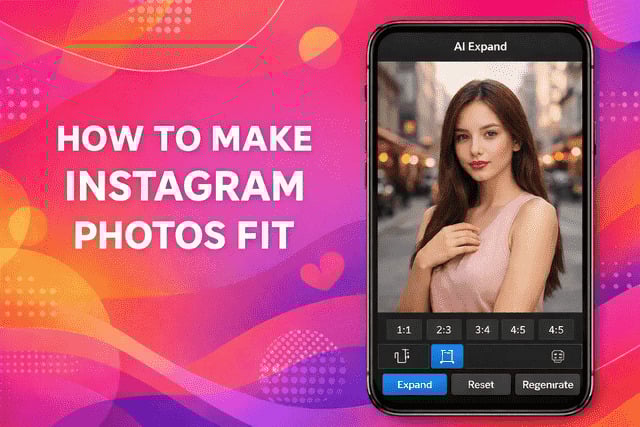
If you have ever uploaded an image and watched Instagram zoom in, crop faces, or cut off important details, you already understand why learning how to make Instagram photos fit matters. Whether you are struggling with how to resize photos for Instagram, or trying to keep the Instagram photo size without cropping, this guide will help you fix the issue once and for all.
To make Instagram photos fit correctly, resize your images to Instagram’s supported dimensions before uploading. The best Instagram photo sizes are 1080 x 1350 pixels for portrait, 1080 x 1080 pixels for square, and 1080 x 566 pixels for landscape photos. Using the correct aspect ratio prevents cropping and preserves image quality.
Instagram rewards clarity, consistency, and clean visuals. Once you understand how sizing works, your photos stop fighting the platform and start working with it.
Instagram’s Supported Photo Aspect Ratios
Instagram supports three main photo aspect ratios: square (1:1), portrait (4:5), and landscape (1.91:1). Images outside these ratios are automatically cropped or resized by Instagram, which can affect quality and composition.
These limits are part of Instagram’s core formatting system and are directly tied to Instagram image dimensions and Instagram photo aspect ratio rules. Staying within these boundaries is the only reliable way to control how your image appears in the feed.
Portrait images take up the most vertical space, square images offer consistency, and landscape images work best for wide shots. No matter which format you choose, understanding the Instagram post size guide helps you avoid surprise edits after uploading.
If your goal is to fit photo on Instagram without cropping, you must design your image around these ratios from the start rather than relying on Instagram to adjust it for you.
How to Resize Photos for Portrait
To resize photos for Instagram portrait posts, use a 4:5 aspect ratio and export the image at 1080 x 1350 pixels to avoid cropping.
Portrait images are the most effective format for engagement because they dominate screen space. Here is how to resize them correctly step by step.
Step 1: Choose the right dimensions
The ideal Instagram portrait photo size is 1080 x 1350 pixels. This is the tallest image Instagram allows in the feed without cutting anything off.
Step 2: Open a reliable editing tool
Apps like Lightroom, Canva, or Snapseed allow you to resize image for Instagram post with precision instead of guessing.
Step 3: Set the aspect ratio first
Lock the crop to 4:5 before resizing. This keeps your composition intact and helps you adjust photo for Instagram without distortion.
Step 4: Resize instead of zooming
Zooming reduces clarity. Resizing the canvas preserves Instagram image resolution and detail.
Step 5: Export at full quality
Always export at the highest quality setting to maintain the correct Instagram photo size after compression.
Well-sized portrait images naturally encourage longer viewing time, which helps posts get more Instagram views as users pause to engage.
How to Resize Photos for Landscape
Instagram landscape photos should be resized to a 1.91:1 aspect ratio with dimensions of 1080 x 566 pixels for best results.
Landscape photos often cause the most frustration because Instagram is strict about width. Follow these steps to avoid issues.
Step 1: Set your target size
The recommended Instagram landscape photo size is 1080 x 566 pixels. Anything wider risks cropping.
Step 2: Crop carefully
Use a 1.91:1 ratio and keep important elements centered as you scale image for Instagram.
Step 3: Check composition balance
Landscape shots can lose edges easily, so reposition your subject before exporting.
Step 4: Maintain resolution
Always export at 1080 pixels wide to preserve Instagram image resolution.
Step 5: Preview before posting
Instagram previews your image before publishing. Use this step to confirm the image fits cleanly within Instagram feed photo dimensions.
High-quality landscape posts help build credibility and perform best when seen by real Instagram followers who engage naturally with your content.
How to Resize Photos for Square
Square Instagram photos should be resized to 1080 x 1080 pixels using a 1:1 aspect ratio to ensure they fit perfectly in the feed.
Square images are Instagram’s original format and the safest choice if you want zero surprises.
Step 1: Set a 1:1 ratio
The ideal Instagram square photo size is 1080 x 1080 pixels.
Step 2: Center your subject
Balanced composition is key with square images.
Step 3: Resize the canvas, not the image
This preserves sharpness and protects Instagram image resolution.
Step 4: Export at maximum quality
High quality exports ensure your photo meets the best photo size for Instagram standards.
Step 5: Avoid Instagram’s crop tool
Instagram’s internal editor often reduces clarity and interferes with proper Instagram upload size handling.
Square posts are especially effective for brand visuals and help maintain consistency across your feed, which also supports efforts to boost likes on Instagram through a polished profile appearance.
Best Sizes for Instagram Feed Photos
The best sizes for Instagram feed photos are 1080 x 1350 pixels for portrait posts, 1080 x 1080 pixels for square posts, and 1080 x 566 pixels for landscape posts. These dimensions follow Instagram’s official guidelines and prevent automatic cropping.
Using these dimensions ensures your content matches Instagram’s display system and avoids unnecessary compression. These Instagram feed photo dimensions are optimized for clarity across devices.
What Happens When Your Photo Doesn’t Fit?
When an Instagram photo does not fit the supported aspect ratios, the platform automatically crops, zooms, or compresses the image. This can reduce image quality, cut off important details, and negatively impact engagement.
Instagram prioritizes speed and consistency over individual image integrity. If your photo breaks sizing rules, Instagram will force it into place even if it hurts the result.
Repeatedly posting images that ignore the Instagram post size guide can make your feed look inconsistent and unpolished. Over time, this affects how users perceive your brand and whether they choose to engage.
Learning how to adjust photo for Instagram properly protects your content and ensures it appears the way you intended.
If you notice your images looking blurry or pixelated after posting, this breakdown of why Instagram decreases photo quality explains how compression and incorrect sizing impact your uploads.
Final Verdict
Mastering How To Make Instagram Photos Fit is one of the simplest ways to upgrade your content without changing your creative style. Once you understand Instagram image dimensions, Instagram photo aspect ratio, and how to resize image for Instagram post, posting becomes predictable and stress free.
Proper sizing helps your images load faster, look sharper, and perform better. When your visuals are clear and intentional, they naturally support visibility and engagement. For creators looking to improve Instagram post visibility, pairing correct formatting with smart content strategies makes a measurable difference.
Clean visuals build trust, and trust keeps people coming back to your profile.
FAQs
What is the best Instagram photo size to avoid cropping?
The best Instagram photo size to avoid cropping is 1080 x 1350 pixels for portrait posts or 1080 x 1080 pixels for square posts. These sizes match Instagram’s supported aspect ratios.
Can I fit a photo on Instagram without cropping?
Yes, you can fit photo on Instagram without cropping by resizing your image to Instagram’s supported aspect ratios before uploading.
Does Instagram reduce image quality after upload?
Yes, Instagram compresses images after upload, which is why starting with the correct Instagram image resolution is important.
What aspect ratio works best for Instagram feed posts?
A 4:5 aspect ratio works best because it takes up more vertical space while staying within Instagram limits.
Should I resize photos before uploading to Instagram?
Yes, resizing beforehand gives you full control over image quality, framing, and final appearance in the feed.