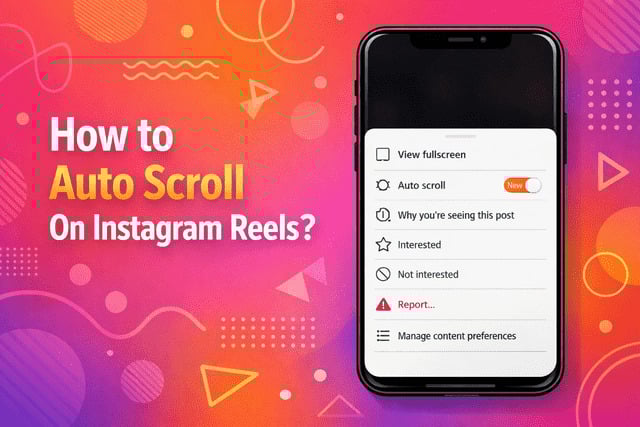
If you have ever found yourself deep into a late-night Reels binge with one hand busy holding coffee or your phone just resting on the table, learning how to auto scroll on Instagram Reels can feel like a small but life-changing discovery. Instagram’s auto scroll option lets you watch Reels hands-free, without tapping or swiping every few seconds. This guide walks you through exactly how it works, where to find it, and what to do if it does not show up for you yet.
Where to Find Auto Scroll in Instagram Settings?
Instagram quietly added the auto scrolling option as part of its ongoing accessibility and user experience improvements. Many people miss it because it is not front and center in the menu. To enable auto scroll Instagram Reels, you need to start by opening the Instagram app and heading straight to the Reels section. Thn do the following:
- Open the Instagram app and tap on the Reels icon at the bottom of the screen
- Start playing any Reel from your feed
- Tap the three-dot menu on the right side of the Reel
- Look for the auto scroll or continuous playback option
- Toggle the feature on to enable automatic scrolling
How Auto Scroll Works While Watching Reels?
Once activated, Instagram Reels auto scroll creates a smooth, almost television-like experience. You watch one Reel, and as soon as it ends, the next one loads automatically without any input from you. This makes binge watch Instagram Reels sessions incredibly easy, especially when you are relaxing or multitasking.
From a technical standpoint, the app uses the same logic as Instagram Reels autoplay, but instead of stopping at the end of each clip, it continues forward. This results in continuous scrolling Instagram Reels, where your feed feels endless and fluid. Many users describe it as the closest thing to automatic Reels viewing Instagram has offered so far.
The experience feels especially natural when you are lying down, cooking, or simply want to watch Reels hands-free. Creators also benefit because viewers tend to stay longer, and longer sessions can indirectly help engagement.
How to Turn Auto Scroll Off Anytime?
Even though scroll Reels automatically sounds appealing, there are moments when you might want control back. Turning the feature off is just as easy as turning it on. While watching a Reel, tap the three-dot menu again and disable the auto scrolling option.
Once turned off, Reels return to the classic swipe-based experience. This flexibility is helpful because not everyone wants passive Reels watching all the time. You might prefer manual control when you are actively engaging, commenting, or saving videos.
Instagram designed the Instagram auto scrolling feature to be optional, which means you can switch between hands-free and manual scrolling whenever you want.
What to Do If Auto Scroll Isn’t Showing?
If you do not see the auto scroll option on your Instagram Reels, do not worry. This is a common issue and usually not a bug or account problem. Here are a few simple things to check before assuming something is wrong:
- Update the Instagram app from the App Store or Google Play
- Check for the auto scroll option while watching a Reel, not in general settings
- Remember that new features often appear on iPhone before Android
- Restart the Instagram app to refresh features
- Log out and log back into your account
- Understand that the feature may not be enabled for your account yet
- Wait for future updates, since Instagram rolls out features gradually
Who Can Use the Auto Scroll Feature?
Currently, automatic scrolling on Instagram Reels is available to a growing number of users across both platforms. Whether you are using auto scroll Instagram Reels Android or Instagram Reels auto scroll iOS, access depends on app version, account type, and sometimes location.
This feature was designed with Instagram accessibility features in mind, especially for users who have difficulty tapping or swiping repeatedly. People who want to watch Instagram Reels without touching screen benefit greatly from this update. It also appeals to casual viewers who enjoy automatic Reels viewing while relaxing.
As Instagram continues improving the Reels experience, features like this are becoming more common. It aligns perfectly with how users consume short-form video today through Reels autoplay feature and endless feeds.
Read more: How to Find Saved Reels on Instagram?
Final Verdict
Learning how to auto scroll on Instagram reels can completely change how you experience the app. Instead of constantly swiping, you can sit back and enjoy a seamless flow of content through auto swipe Reels Instagram functionality. While the feature is still rolling out, it is clear that Instagram is moving toward a more hands-free, immersive experience.
Whether you are using enable auto scroll on Instagram app for accessibility, convenience, or pure entertainment, it adds real value to everyday scrolling. If you do not see it yet, patience is key, because most users eventually gain access as updates expand. Until then, staying updated and exploring Reels settings keeps you ready for when it appears.
FAQs
How do I turn on auto scroll on Instagram Reels?
To activate it, open a Reel, tap the three-dot menu, and look for the auto scroll option if it is available. This is the main method for how to turn on auto scroll on Instagram without using third-party tools.
Why is auto scroll not available on my Instagram?
This usually happens because the feature is still rolling out or your app is outdated. Many users searching why auto scroll is not available on Instagram simply need to update their app or wait for account eligibility.
Does auto scroll work on both iPhone and Android?
Yes, but availability can vary. Some users see Instagram Reels auto scroll iOS first, while others wait longer for Instagram Reels auto scroll Android access.
Can I watch Reels hands-free using auto scroll?
Absolutely. The feature was designed to let users scroll Reels without tapping and enjoy hands-free Instagram Reels viewing comfortably.
Is auto scroll part of Instagram accessibility features?
Yes, it supports easier content consumption and aligns with broader Instagram accessibility features aimed at improving user experience for everyone.